Compress video for WhatsApp
WhatsApp caps shared videos at 16 MB, which is roughly 30 seconds of phone footage. The WhatsApp preset targets 16 MB and drops to 720p so the clip still looks sharp on a phone screen.
Reduce video file size directly in your browser. Your video is compressed on your own device — nothing is uploaded to a server, and there is no watermark or sign-up.
Most online video compressors work the same way: you hand over your file, it sits on someone else's server while it is transcoded, and a privacy policy is all that tells you what happens next. That is a lot of trust to extend for a client shoot or a screen recording of your dashboard.
ShotEdit works the other way around. The moment you drop a file in, it is read straight from your disk into your browser tab. The encoding runs on your own CPU and GPU through WebCodecs, the same hardware pipeline your video player uses. Nothing is transmitted, nothing is queued, and nothing is stored — close the tab and every trace of the file is gone from memory.
It also means no file size cap imposed by an upload form. A 3 GB screen recording is limited only by what your machine can hold, not by what a free plan allows.
Your video is never transmitted to ShotEdit or any third party.
No sign-up, no email, no usage counter.
The output is a clean MP4 you can publish anywhere.
Once the page is loaded, compression keeps working without a connection.
Most people reach for a free video size reducer because something refuses to send. Every platform draws its size limit in a different place, so the presets below set a target and pick the bitrate for you.
WhatsApp caps shared videos at 16 MB, which is roughly 30 seconds of phone footage. The WhatsApp preset targets 16 MB and drops to 720p so the clip still looks sharp on a phone screen.
Free Discord accounts stop at 8 MB per upload; Nitro raises it to 25 MB (and 500 MB on the top tier). Pick the preset that matches your account and the file lands under the limit on the first try.
Gmail rejects attachments over 25 MB and most corporate mail servers stop at 20 MB. The Email preset aims at 20 MB so the message clears both ends of the conversation.
Instagram re-encodes whatever you upload, so a 2 GB master only costs you upload time and a second round of quality loss. A clean 1080p file gives a better final result.
TikTok also transcodes on ingest. A tidy 1080p H.264 file uploads far faster and survives their compression noticeably better than an oversized source.
Need a specific number rather than a platform? Switch to Target size, type 25 (or 10, or anything else) and the reducer works backwards from that figure to a bitrate.
Telegram allows files up to 2 GB, so you rarely need to compress for it — but a smaller file still uploads and downloads far faster on mobile data.
Three steps to make your video smaller — no account, no upload.
Drag a file onto the box above or click to browse. ShotEdit reads the duration, resolution, bitrate and codec straight from your device.
Choose Balanced for a roughly 50% reduction, type an exact size in megabytes, or tap a platform preset such as WhatsApp or Discord. The estimated output size updates as you change settings.
Press Reduce Video Size, watch the progress bar, then preview and download the compressed MP4. The file is named after your original with a -compressed suffix.
The reducer reads the containers below and always writes a standard MP4, because MP4 with H.264 is the one combination that plays everywhere — phones, browsers, TVs, editing software and every messaging app.
The default from phones, cameras and screen recorders.
Apple QuickTime files from iPhone, Mac and pro cameras.
Matroska containers from screen capture and archiving tools.
VP8/VP9 files from browser recorders and the web.
Apple's MP4 variant used by iTunes exports.
Older mobile recordings, often from feature phones.
AVI, FLV and WMV are legacy containers that browsers cannot demux directly. Convert them to MP4 first, then reduce the file size here.
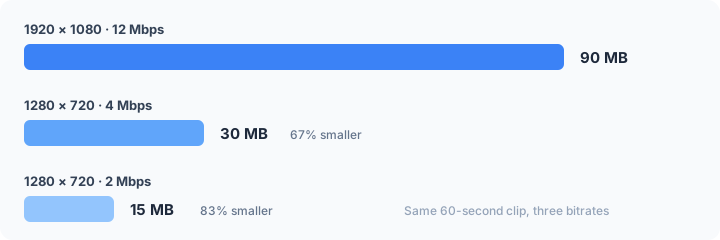
A video file's size is almost entirely decided by one number: bitrate, measured in bits per second. Multiply bitrate by duration and you have the file size. That is why a 60-second clip at 12 Mbps takes about 90 MB, and why the same clip at 2 Mbps takes about 15 MB. Everything a video size reducer does is a way of spending fewer bits per second while keeping the picture acceptable.
There are three levers. The first is the codec. H.264 (AVC) plays on effectively every device made in the last fifteen years. H.265 (HEVC) reaches similar quality at roughly 30% lower bitrate, but older devices and some browsers will not play it — which is why H.264 is the default here and H.265 is an option.
The second lever is resolution. Bits are spread across pixels, so a fixed bitrate looks far better at 1280×720 than at 1920×1080. Below roughly 0.04 bits per pixel per frame, H.264 starts to show blocking in motion. Ask for an aggressive reduction at the original resolution and the reducer scales the frame down rather than handing you a blocky 1080p file — you can always override that.
The third lever is rate control. A bitrate target gives you a predictable file size, which is what you want when a platform enforces a hard limit. CRF (constant rate factor, exposed as a quantizer in the advanced panel) instead holds quality steady and lets size float with the complexity of the footage. CRF 23 is the standard default; lower numbers mean better quality and bigger files.
Audio matters less than people expect. A stereo AAC track at 128 kbps adds about 1 MB per minute — worth dropping for silent screen recordings, but never the main cause of a large file.
Both approaches shrink video files. What changes is where the work happens — in your tab, or on someone else's server.
| ShotEdit | Typical upload-based tool | |
|---|---|---|
| Where your file goes | Stays on your device | Uploaded to a remote server |
| File size limit | Limited only by your device memory | Often 100 MB–1 GB on the free tier |
| Waiting time | Encoding only — no upload or download round trip | Upload + queue + encode + download |
| Watermark | Never | Common on free tiers |
| Daily limit | Unlimited | Usually 2–5 files per day |
| Sign-up | Not required | Frequently required |
| Cost | Free | Free tier plus paid upgrade |
Yes. There is no paid tier for this tool, no daily quota and no watermark. Because compression runs on your own device, ShotEdit pays nothing per file, so there is no cost to pass on to you.
No. The file is read from your disk into the browser tab and encoded there using WebCodecs. Nothing is transmitted to ShotEdit or to any third party, and nothing is stored after you close the tab.
Between about 20% and 90%, depending on the preset you pick and how the original was encoded. Footage straight from a phone or a screen recorder is usually generously encoded and can lose 50–75% with very little visible change. A file that has already been compressed once has far less headroom.
Any reduction beyond the redundancy in the original costs some detail, but at the Light and Balanced presets the difference is hard to see at normal playback. It becomes visible in fast motion and fine texture at Strong and Extreme. To shrink a video without losing noticeable quality, start with Balanced and step up only if the file is still too big.
It reads MP4, MOV, MKV, WebM, M4V and 3GP files, and always writes MP4 with H.264 video and AAC audio so the result plays everywhere. AVI, FLV and WMV need to be converted to MP4 first.
Add your clip, switch to Platform preset and choose WhatsApp. That targets 16 MB — WhatsApp's share limit — and scales the video to 720p, which is more than enough for a phone screen. Press Reduce Video Size and send the downloaded MP4.
Pick the Discord Nitro preset for a 25 MB target, or the Discord preset for the 8 MB free-account limit. You can also switch to Target size and type any number of megabytes; the reducer works backwards from that figure to a bitrate.
There is no limit imposed by ShotEdit — the practical ceiling is your device's available memory. Multi-gigabyte files work on a modern desktop; on an older phone, lowering the resolution first makes large files far more reliable.
Yes, on recent versions of Chrome for Android and Safari on iOS. Phones have less memory and slower encoders than laptops, so 720p and below is the comfortable working range for longer clips.
H.265 reaches the same quality at roughly 30% lower bitrate, so it produces smaller files. H.264 plays on virtually every device and app ever made. Use H.264 unless you know the destination supports H.265 — which is why it is the default here.
Working with stills rather than footage? These browser-based tools follow the same no-upload rule.
Need to shrink pictures instead? Use the free image compressor.